Test your scenarios before they go live with the Scenario Tester

One wrong selector or a mistyped dataLayer key can quietly break a check you thought was protecting your data. The Scenario Tester runs your DataLayer Guard scenarios live on-screen, so you can watch every step, find what fails and fix it before you activate anything.

book your free demo
Hands-on testing, trusted by 100+ clients worldwide
American Eagle Outfitters logo - a client using Code-Cube.io for marketing observability and tag monitoring.
AutoTrack logo - Leading Dutch automotive marketplace using Code-Cube.io for enterprise-scale marketing observability and tracking data integrity.
Groupe Chantelle logo (white) - Global lingerie leader and Code-Cube.io customer for multi-brand marketing observability.
Goboony official logo - Trusted partner using Code-Cube.io for automated tag monitoring and dataLayer validation across multiple markets.
New Balance logo (white) - Global athletic brand using Code-Cube.io to ensure accurate conversion tracking and performance marketing observability.
The North Face logo (white) - Global enterprise customer using Code-Cube.io for marketing observability and large-scale data collection monitoring.
Timberland logo - Global retail brand using Code-Cube.io to monitor e-commerce tracking and marketing data collection.

What is the Scenario Tester?

The Scenario Tester is part of the DataLayer Guard. It lets you validate your scenario configurations in real time, before they start running as background checks. You don’t have to activate a scenario and hope it works. You start a test and watch DataLayer Guard carry out each step in a real browser, with a live video feed of your website next to it.

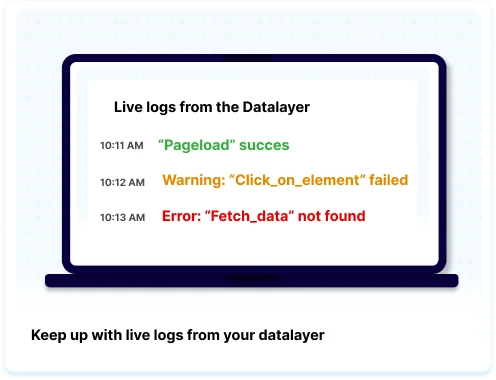
As the test runs, every step appears with a pass or fail status, and a live log shows each dataLayer event that’s found and each error that comes up. When the test finishes, you get a full results overview showing which steps passed, which dataLayer objects were collected, and exactly which parameters were missing or wrong, with the expected value next to the actual value. You can test a single scenario, or run all of them at once before going live.

Go live with checks you can trust

Watch every step live

See DataLayer Guard move through your website in a live browser feed, with each step marked pass or fail as it happens.

Pinpoint what’s wrong

Failed steps show the expected value next to the actual value for every parameter, so you know exactly what to fix.

Share the results

Export a complete test report as PDF or Excel for your team, your client, or your sign-off before launch.

This image is an illustration that serves as an example of what the feature called 'live browser feed' looks like.

Fix configuration errors in minutes

A broken selector or an incorrect JSON object is easy to miss and hard to trace once a check is running in the background. The live step panel shows exactly where a scenario breaks. Click any step and you go straight to it in the scenario editor, so you can adjust it and run the test again right away.

Full insight into your dataLayer

Each test gives you a live count of collected dataLayer objects, errors, scenarios and steps. Afterwards, expand any scenario to see the collected dataLayer objects as formatted JSON, alongside a clear breakdown of every validation error. You know what your dataLayer is sending before you rely on it.

Schedule a talk
This image portrays an illustration and serves as an example of what the tool that is described on the page looks like.
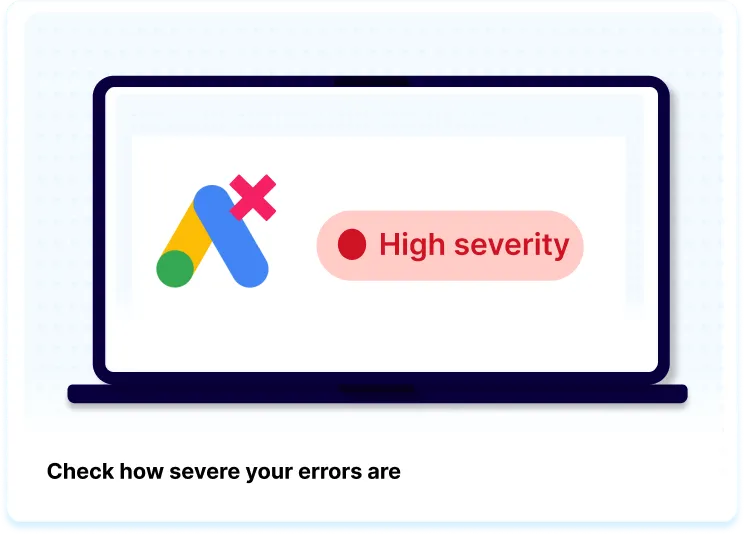
The image is a simple illustration serving as an example of how the error severity feature works. There is text saying: "Check how severe your errors are".

Severity levels based on business impact

Know right away when something is wrong with one of your most important tags. Based on historical tracking data, the system predicts the potential business impact of any broken tag.

Prioritize which tags to debug first, so you don’t miss revenue later.

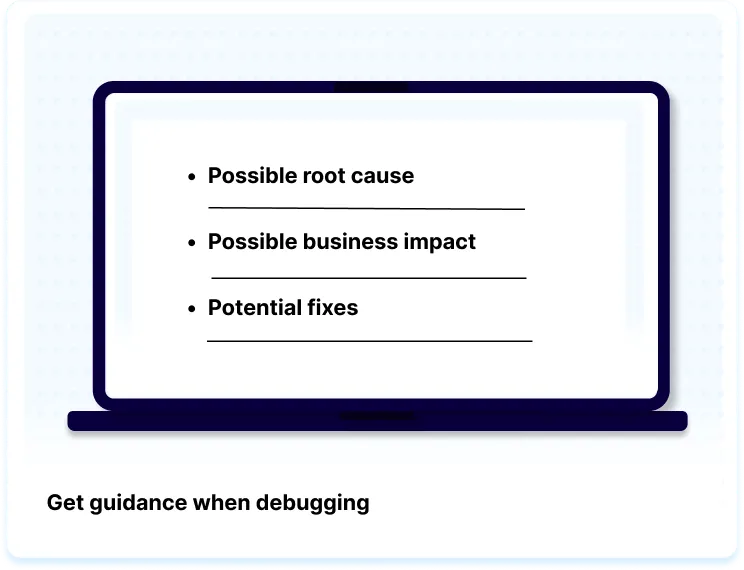
The image is a simple illustration serving as an example of how the Tag Debug Assistant guidance feature looks like. There is text saying: "Get guidance when debugging".

Complete insight in one click

Once you open the Tag Debug Assistant, you know what’s wrong. With valuable insights in one place, you won’t waste more time than needed fixing your broken tags.

Schedule a talk

Stop wasting ad spend on broken data. Maximize your ROAS today.

Installation takes just a few clicks – no developers needed! We handle all the setup for you. Ready to go?

get started today